Title here
Summary here
You will need to setup a Discord application and bot in the Discord Dev Portal. Then you will need to turn on dev mode in Discord to grab some IDs. Lets dive in.
Enter a name and confirm the pop-up window by clicking the “Create” button.
You should see a page like this:
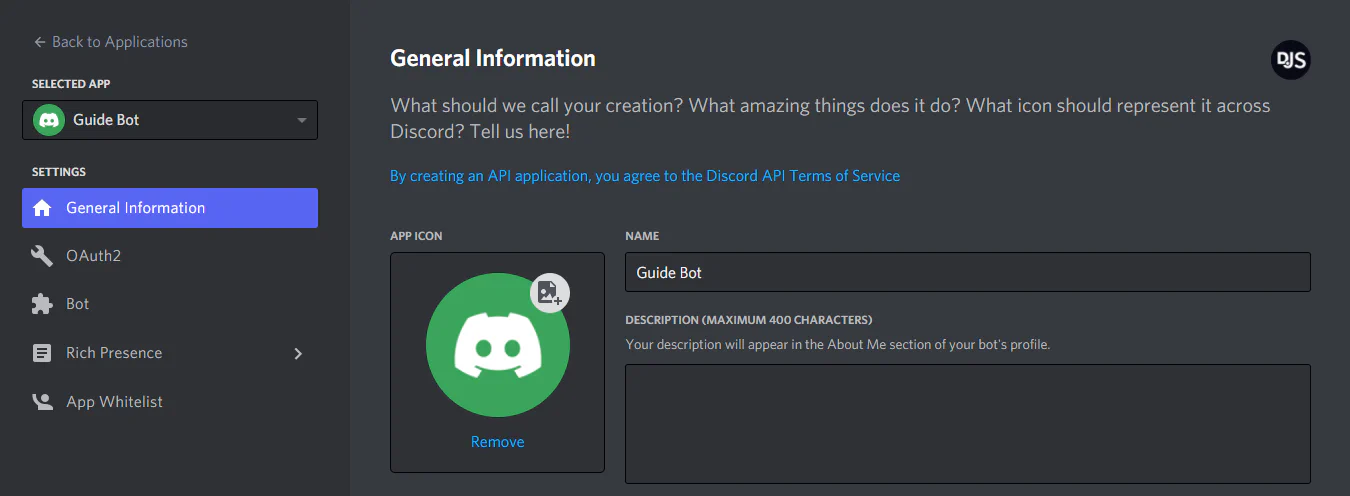
You can edit your application’s name, description, and avatar here. Once you’ve done that, then congratulations—you’re now the proud owner of a shiny new Discord bot! You’re not entirely done, though.
After creating a bot user, you’ll see a section like this:
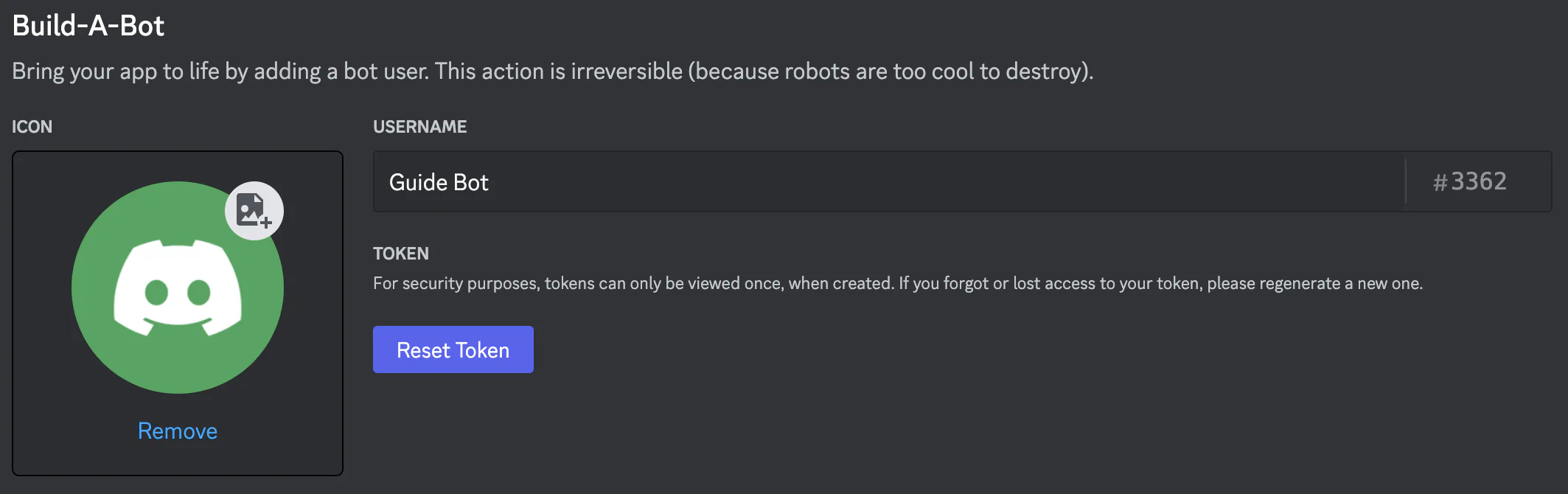
Thank you to Discord.JS for the pictures used in this section.
Danger
You should never share your token or post it anywhere. If it leaks or you forget it, you can reset it in the Discord Dev Portal
The setup is pretty simple and you can probably just follow the UI tips, but a complete breakdown is below.
When the app first launches, it will seed its database and then start the setup experience. The initial screen will look like this:
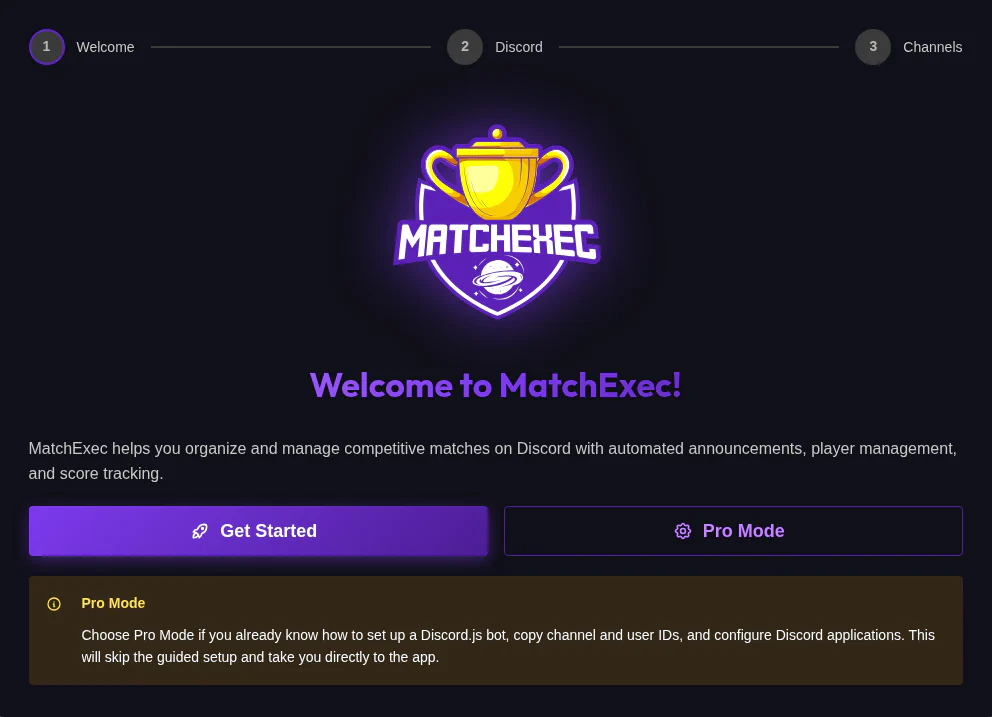
Click Get Started
Put in your Application ID and Bot Token from above into the correct fields and click Add Bot. This will open a sign in page and then add the bot to your actual server.
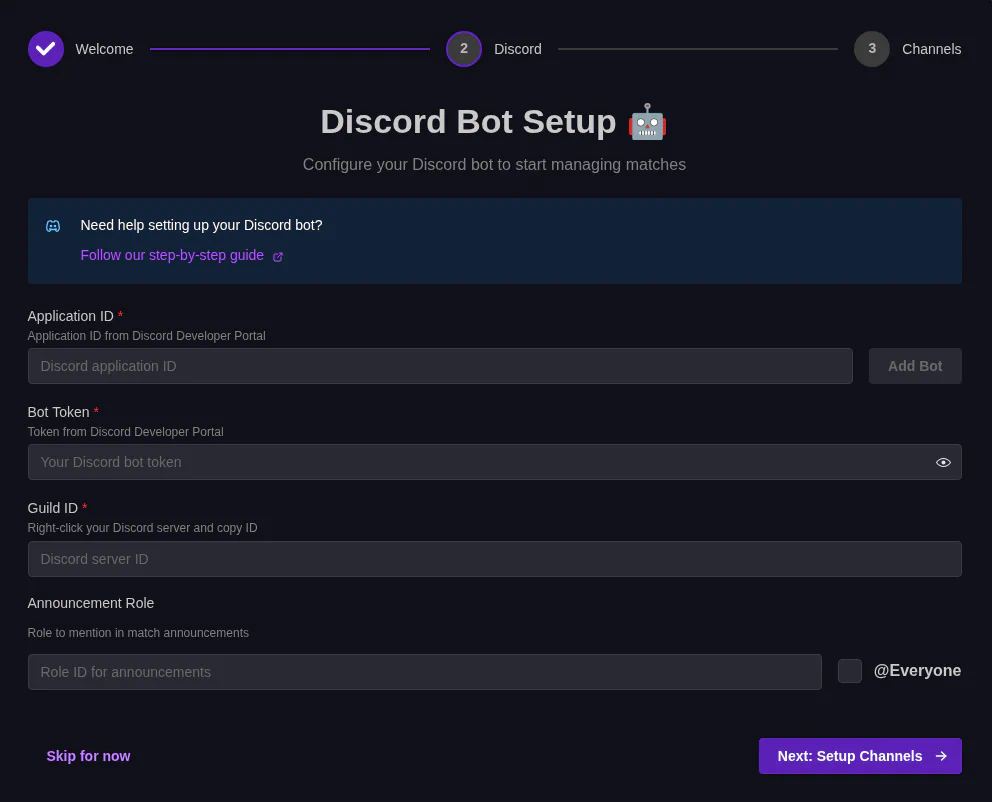
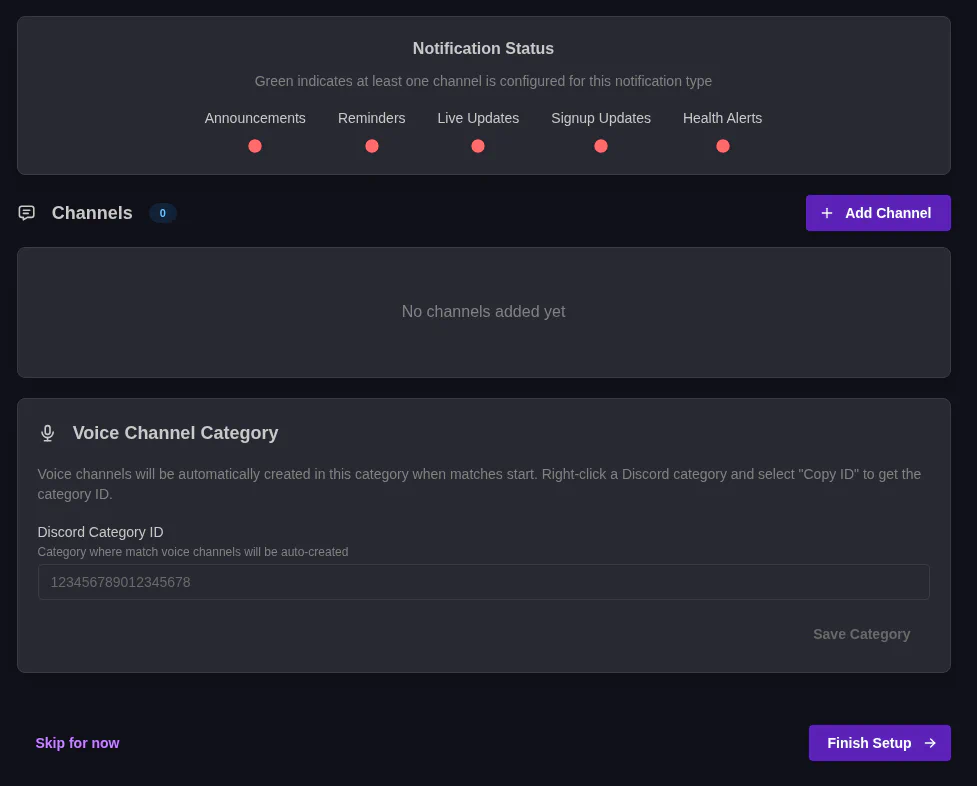
On the next page you can setup channels in discord for the app to use. Click Add Channel to add text channels for the app to use. Status indicators at the top tell you if you have a channel setup for that type of message.
Right click and select copy ID on any Category on your server and paste that into the Category ID under Voice channels.
Tip
For my install I have the following channels: